



Help centreCheckMyEmail
Desktop alerts for new Gmail
How CheckMyEmail's desktop alerts work: open an email in one click, copy sign-in codes, choose previews and sounds.
Quick answer: CheckMyEmail pops up a desktop alert and plays a soft chime for each new email — both on by default. Fastest switch: click the CheckMyEmail icon, then 🔊 at the top of the quick inbox, and turn Sound or Pop-ups on or off. Every option: CheckMyEmail icon → ⚙ Settings → Alerts. To silence everything, set Desktop alerts to Off; to keep pop-ups but stop the sound, set Sound to Off.
What an alert shows
An alert shows who the email is from, the subject and Gmail’s short preview. Click the alert ① to open the email in Gmail.
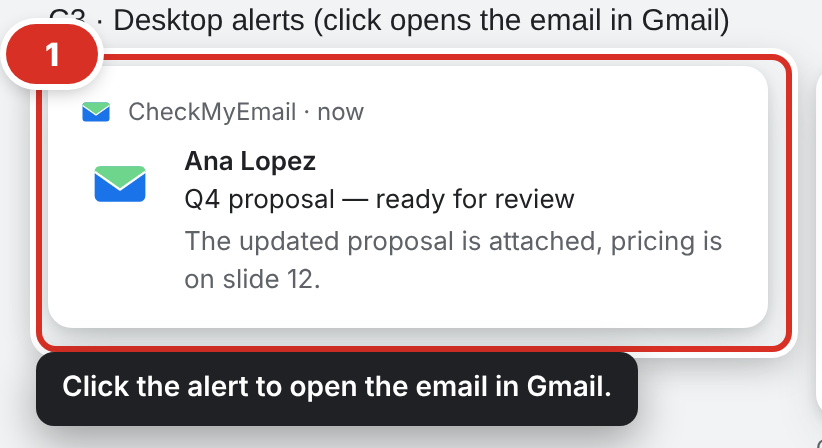
If more than three emails arrive at once, you get one alert that lists the senders instead of several.
Copy a sign-in code from an alert
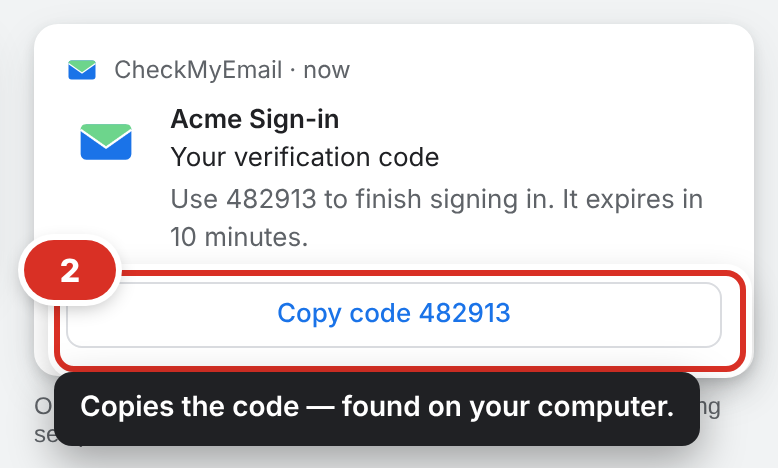
When the email contains a one-time code, the alert has a Copy code button ②. Click it, then paste the code into the sign-in page. Codes are found on your computer by a simple text pattern; nothing is sent anywhere.
To hide the button: Settings → Alerts → Desktop alerts → “Copy code” button (on by default).
Turn alerts and sound on or off
In one click — the 🔊 button. Click the CheckMyEmail icon in the Chrome toolbar, then 🔊 (between ↻ and ⚙ at the top of the quick inbox). Its menu has three switches: Sound, Pop-ups and Quiet while Gmail is open, plus More alert settings. Turning Sound off and on again brings back the sound you had chosen. The icon shows a speaker with a slash when the sound or pop-ups are off.
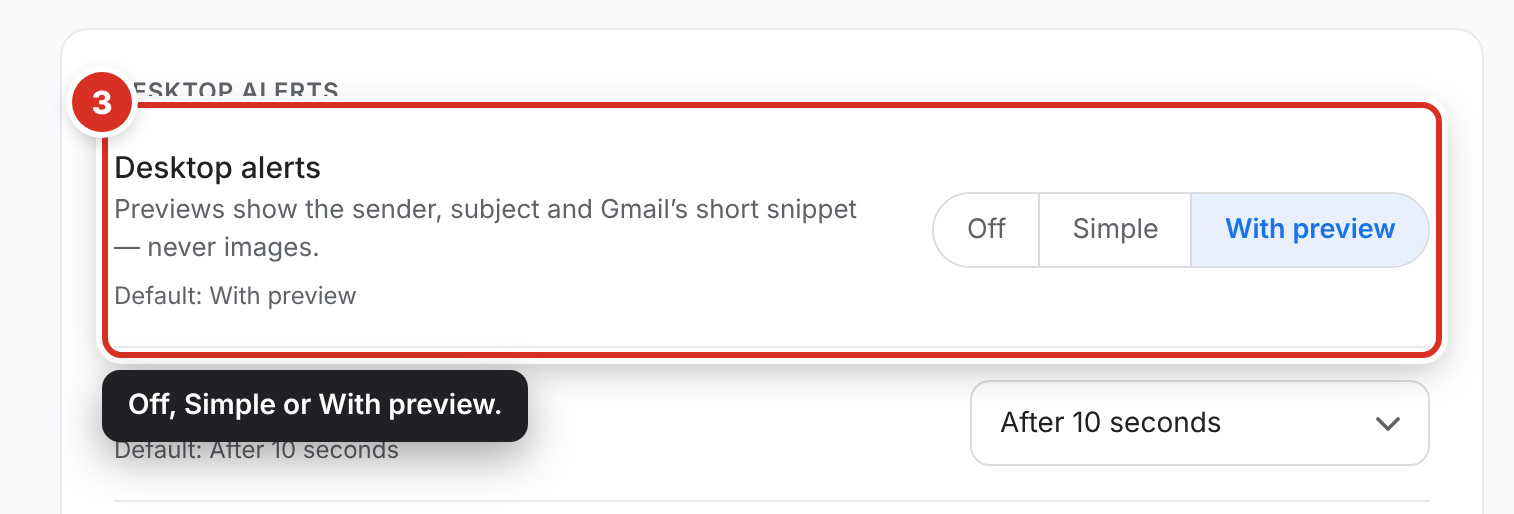
All options — the Alerts tab. Every switch is on the Alerts tab ③: click the CheckMyEmail icon in the Chrome toolbar, click ⚙ (Settings), then click Alerts.
| To… | Go to | Choose | Default |
|---|---|---|---|
| Turn all pop-ups off | Settings → Alerts → Desktop alerts | Off | With preview |
| Hide the email preview | Settings → Alerts → Desktop alerts | Simple (sender and subject only) | With preview |
| Turn the sound off | Settings → Alerts → Sound | Off | Chime 1 |
| Change the sound | Settings → Alerts → Sound | Chime 1–9, Gentle rise or Warm low — choosing one plays it, ▶ Play plays it again | Chime 1 |
| Make it louder or quieter | Settings → Alerts → Sound → Volume | Move the slider (your computer’s volume still applies) | 70% |
| Change how long alerts stay | Settings → Alerts → Close alerts | After 5 seconds, After 10 seconds or When I dismiss it | After 10 seconds |
| Silence alerts while Gmail is open | Settings → Alerts → Stay quiet → Quiet while Gmail is open | Switch on | Off |
| Allow alerts in full screen | Settings → Alerts → Stay quiet → Quiet in full screen | Switch off | On |
| Silence one account | Settings → Accounts → that account’s Desktop alerts switch | Switch off | On (main account) |
| Silence alerts on a schedule | Settings → Quiet hours → Quiet hours | Switch on, then set the times — see Quiet hours | Off |
Turning pop-ups or sound off never changes the unread count: new email still counts on the icon and shows in the quick inbox.
With a paid plan, the Alerts tab also has Sound for each account, Sound for a person and VIP senders — see Settings.
Why an alert didn’t play
CheckMyEmail holds back pop-ups and sounds — but keeps counting — when:
- Quiet while Gmail is open is switched on and Gmail is open in any tab (off by default);
- a window is in full screen and Quiet in full screen is on (on by default);
- quiet hours are on;
- the email came to an account whose Desktop alerts switch is off. On the Free plan, only the Main account alerts.
When alerts are held back for one of the first three reasons, the 🔊 button at the top of the quick inbox shows a small yellow dot. Hover it, or click it, to see why — for example “Quiet while Gmail is open — no pop-ups or sounds.”
Still nothing? See Alerts or count not showing.
Sound credits
Chimes 1–9 are by Universfield on Pixabay, softened and shortened for CheckMyEmail. Gentle rise and Warm low are our own.
Still stuck? Email [email protected].