


Help centreUsing it
Change your settings
Open the TrackMy.Email settings to choose tracking for new emails, notifications and the badge, replay the tour or sign out.
Quick answer: Click the TrackMy.Email icon in the Chrome toolbar, then ⚙ (settings). Tabs: Tracking, Notifications, Subscription, Account, Help. Settings are saved to your account and follow you to every computer. Every setting with its default: All settings at a glance.
Your settings are saved to your account, so they follow you to every computer you sign in on.
Open the settings
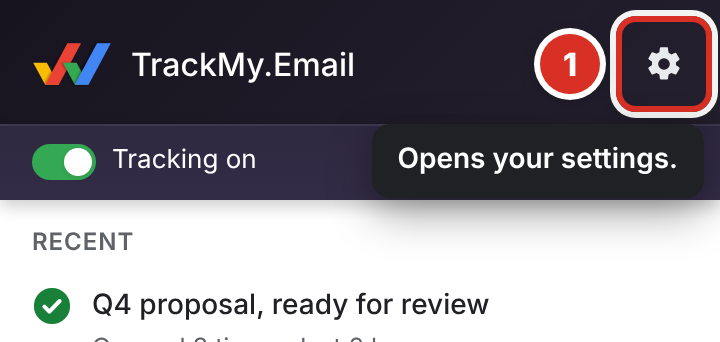
Click the TrackMy.Email icon in the Chrome toolbar, then the settings icon ①.
What each setting does
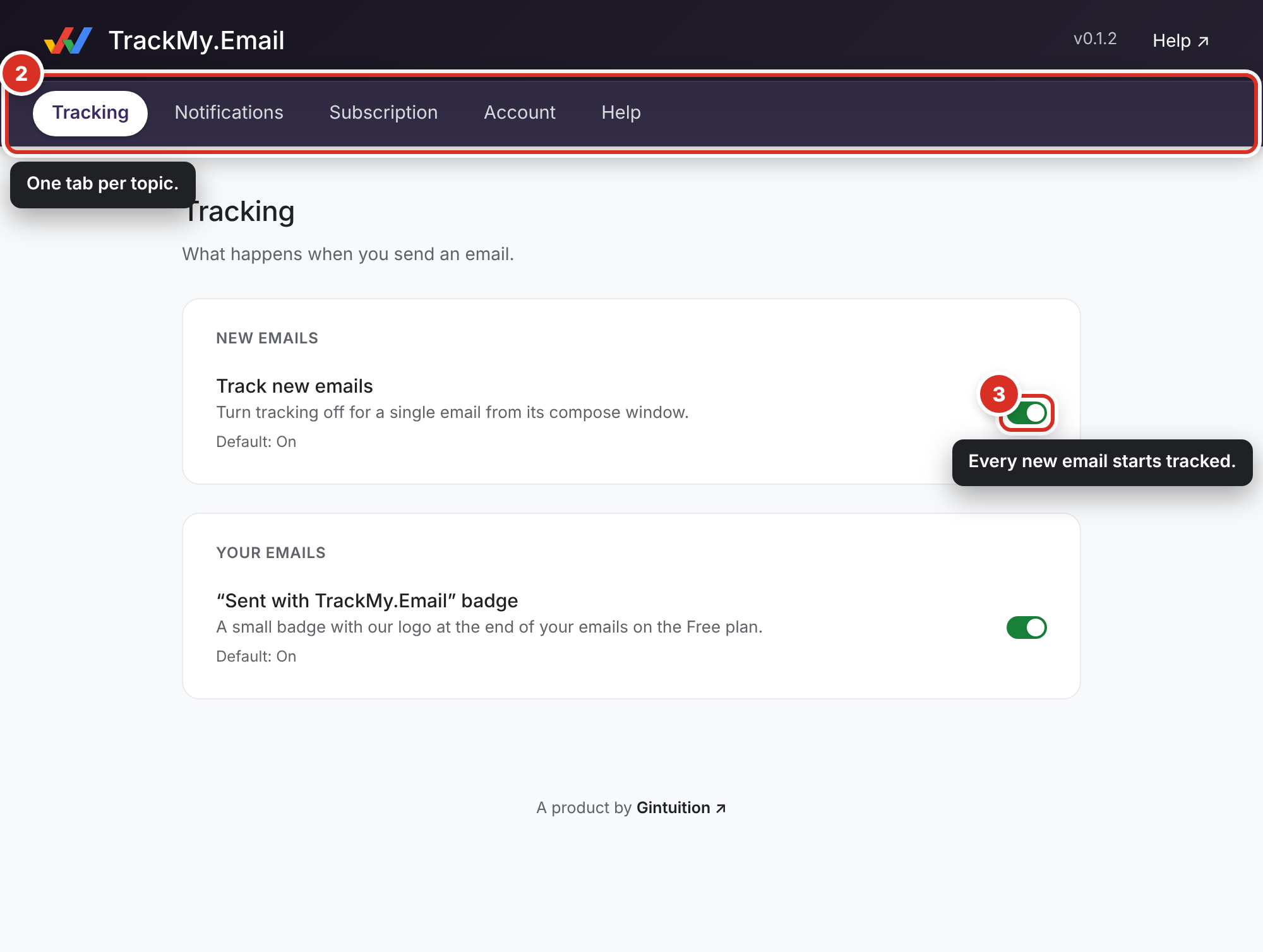
Settings has a tab for each topic ②:
| Tab | What’s on it |
|---|---|
| Tracking | Track new emails ③: on, every new email starts with tracking on; off, new emails start untracked. See Turn tracking off for one email. Also the “Sent with TrackMy.Email” badge at the end of your emails on the Free plan; switching it off is included in Pro. See The “Sent with TrackMy.Email” badge. |
| Notifications | Desktop notifications when an email is opened, how often to check while Gmail is closed, and Quiet hours (Pro). See Get notified when it’s opened. |
| Subscription | Your plan: pause, cancel or resume it, or open Billing for your card and invoices. |
| Account | Your email address and plan, Sign out for this computer, and a link to your account page to download or delete your data. |
| Help | The help centre, Take the tour (replays the walkthrough the next time you open or reload Gmail) and Copy debug log. |
The Tracking switch at the top of the toolbar popup is the same as Track new emails.
Still stuck? Email [email protected].