


Help centreCheckMyEmail
Use the quick inbox
Click the CheckMyEmail icon to see your unread emails from every Gmail account, open one in Gmail or copy a sign-in code.
Quick answer: Click the CheckMyEmail icon in the Chrome toolbar to open the quick inbox: unread emails for one Gmail account at a time. Switch accounts with the round buttons on the left, add one with the dashed +, and click any email to open it in Gmail.
The quick inbox is the list that opens when you click the CheckMyEmail icon. It shows your unread emails one Gmail account at a time, newest first.
Read and open emails
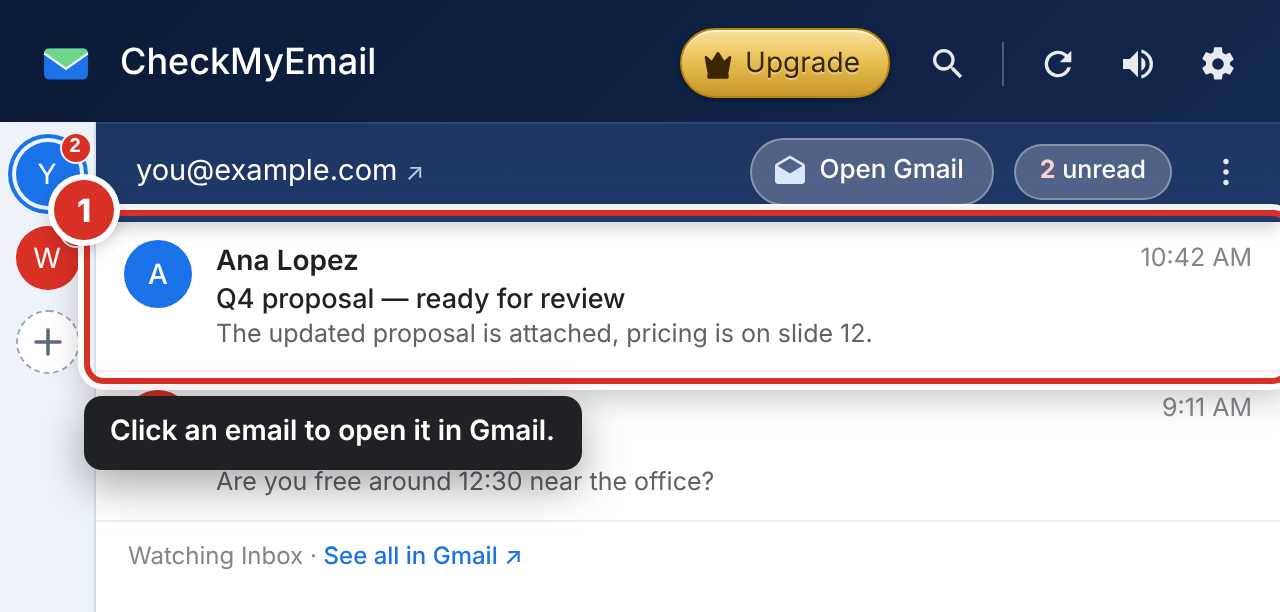
Each email shows the sender, the subject and Gmail’s short preview. Images in emails are never loaded. Click an email ① to open it in Gmail, in the right account.
Each account’s row
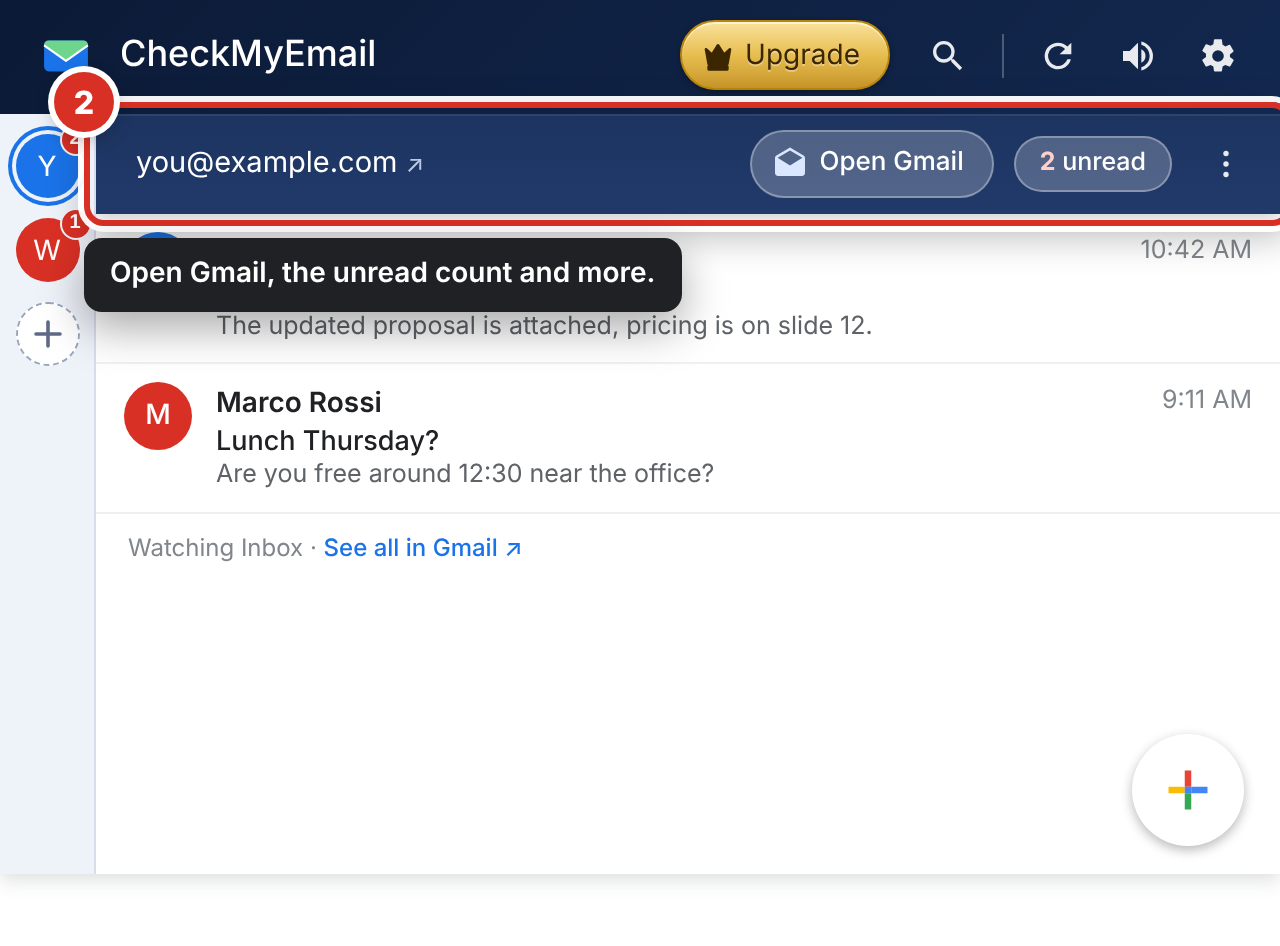
Each Gmail account has its own row ②: click the address to open that inbox, or Open Gmail. The white pill shows how many unread emails it has. The ⋮ menu has Contacts, Copy email address, and the Spam and Trash folders.
Switch or add accounts
The rail on the left has a round button for each Gmail account, with its unread count in red. Click one to see that inbox — the quick inbox remembers your choice. Click the dashed + ③ to add another Gmail account: Google’s own sign-in opens in a new tab, and the account appears here within a minute.
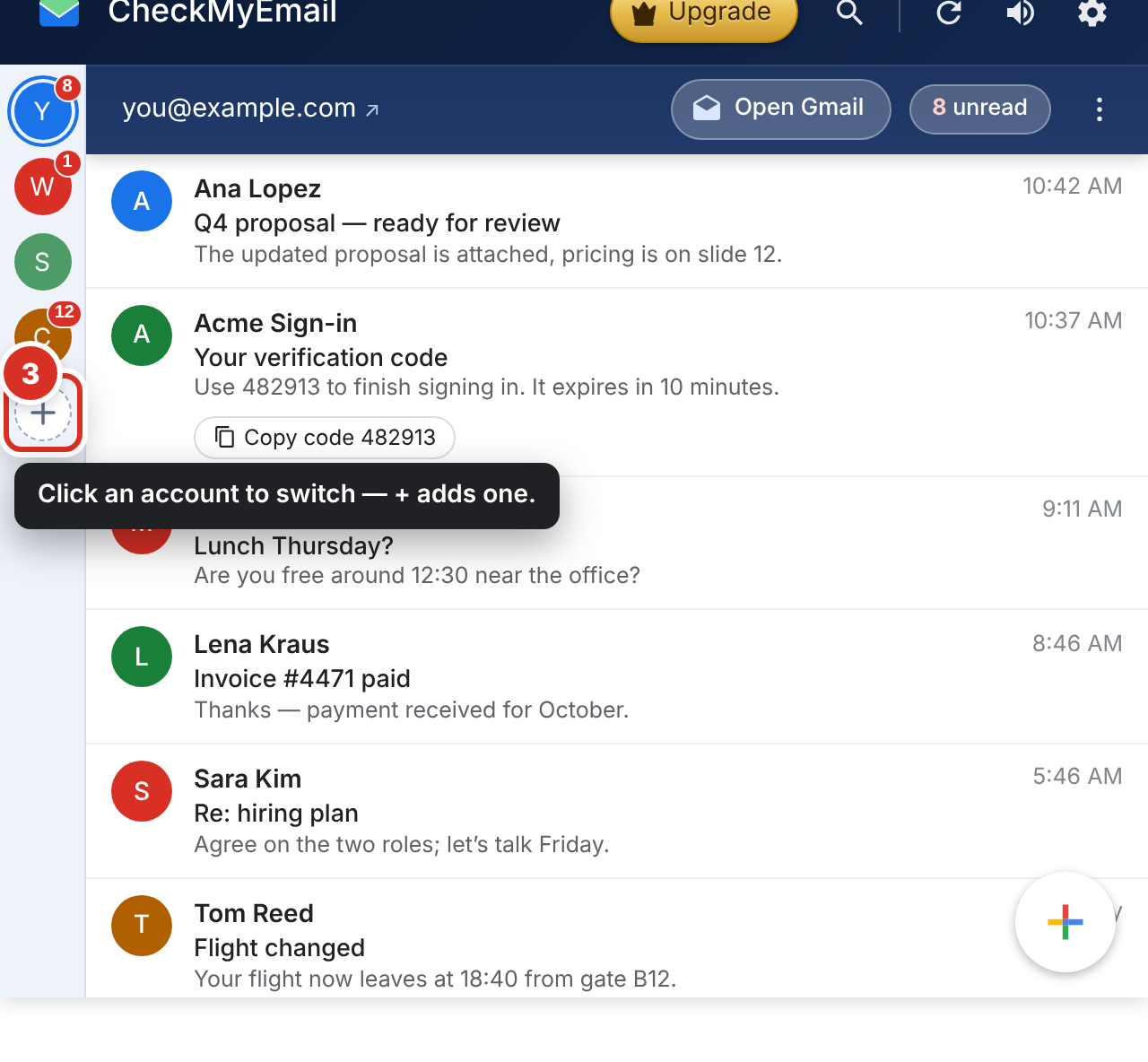
At the top, the magnifying glass searches your Gmail, the circular arrow checks for new mail straight away, 🔊 switches sound and pop-ups, and the gear opens Settings.
Write an email
The round + button at the bottom right opens a new email in its own Gmail window. If you set a quick contact in Settings → Inbox → Quick contact (Settings), hover the + and click their picture to write to them in one click.
Copy a sign-in code
When an email contains a one-time code, such as a sign-in or verification code, a Copy code button appears under it. Click it and paste the code where you need it. The code is found on your computer; nothing is sent anywhere.
Prefer Gmail itself?
Go to Settings → Toolbar icon → Clicking the icon and choose Opens Gmail — or Writes a new email (Settings).
Upgrade and missed alerts
On the free plan, a gold Upgrade button sits at the top of the quick inbox. If an account whose alerts are off gets new mail, a short note at the bottom says so (“New mail in … — alerts are off”) — Turn on switches its alerts on (or shows the plans on the free plan), and × hides the note for a week.
Turn the sound or pop-ups off from here
Click 🔊 at the top of the quick inbox for three switches: Sound, Pop-ups and Quiet while Gmail is open. A yellow dot on 🔊 means alerts are held back right now — the menu says why (for example “Quiet while Gmail is open”). See Desktop alerts.
Still stuck? Email [email protected].