

Help centreCheckMyEmail
CheckMyEmail settings
Choose which Gmail views and accounts CheckMyEmail counts, and set the toolbar icon, alerts and sounds the way you like.
Quick answer: Open settings from ⚙ in the quick inbox (click the CheckMyEmail icon first), or right-click the icon and choose Options. Tabs: Accounts, Inbox, Alerts, Toolbar icon, Quiet hours, Subscription, Help. Every setting with where it is and its default: All settings at a glance.
Open settings from the gear icon in the quick inbox, or right-click the CheckMyEmail icon and choose Options. Settings has a tab for each topic: Accounts, Inbox, Alerts, Toolbar icon, Quiet hours, Subscription and Help. On Subscription you can pause, cancel or resume a paid plan, or open Billing for your card and invoices — it’s the same plan as TrackMy.Email. Changes save as you make them. Each setting shows its default under it; Reset next to a changed one puts it back.
Quick start
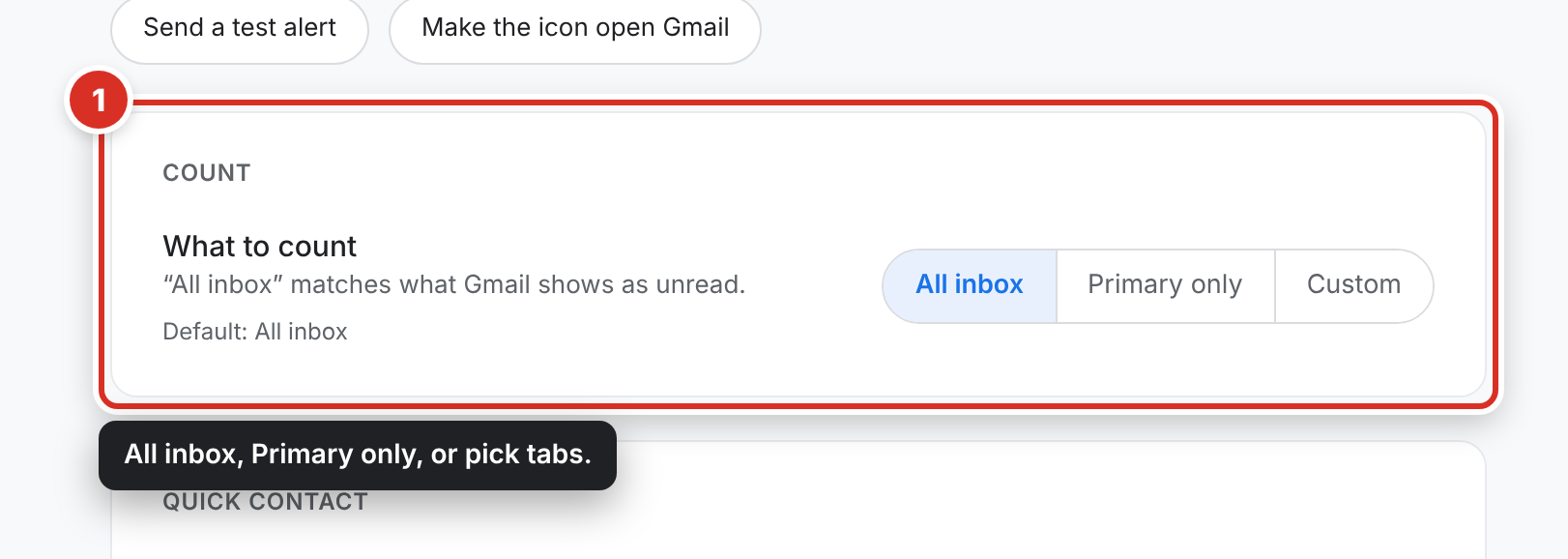
Two buttons at the top of the Inbox tab do common things in one click: Send a test alert and Make the icon open Gmail.
Inbox: which emails count
On the Inbox tab, under Count ①, choose what counts towards the number on the icon and triggers alerts. There are three choices: All inbox (the default — every unread email in your inbox, like Gmail’s own count), Primary only (email from people), or Custom, where you pick the Gmail tabs: Primary, Updates, Social, Promotions and Important. At least one stays on.
Updates is where Gmail usually puts receipts and sign-in codes. All inbox includes it. With Custom, keep Updates on if you want alerts for verification codes.
Accounts
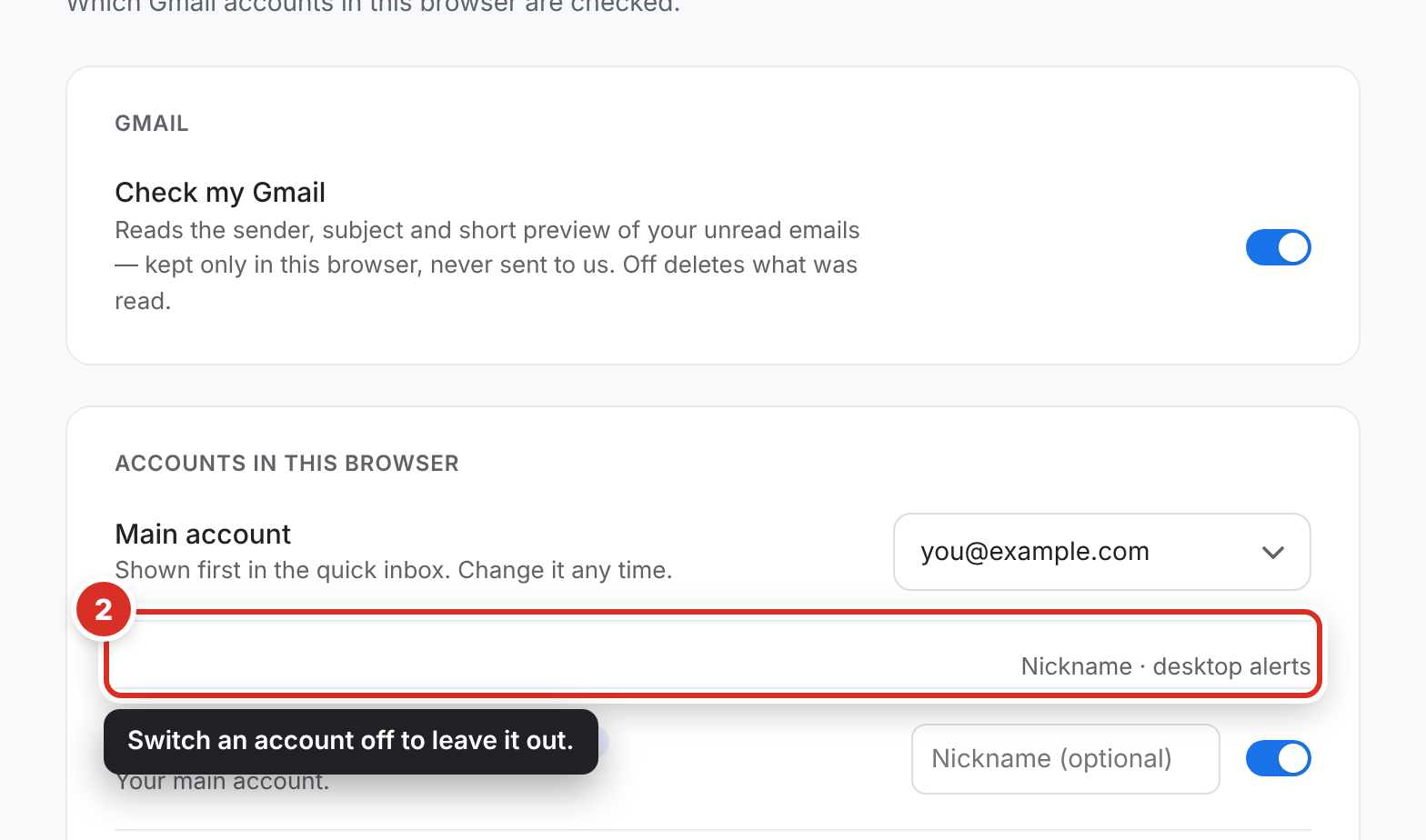
Every Gmail account signed in to this browser is listed on the Accounts tab ②. Pick your Main account — the quick inbox opens on it, and its desktop alerts are free. Each account has a Nickname box (“Work”, “Personal”) and a Desktop alerts switch; an account with alerts off still counts on the icon and shows in the quick inbox. Add account opens Google’s sign-in so you can add another Gmail account to this browser.
Alerts from more than one account, nicknames, your own sounds, VIP senders, popup themes and quiet hours come with an upgrade — see Plans.
Above them, Check my Gmail is the permission you gave when you clicked Allow. Switching it off stops CheckMyEmail checking Gmail and deletes everything it had read.
Toolbar icon
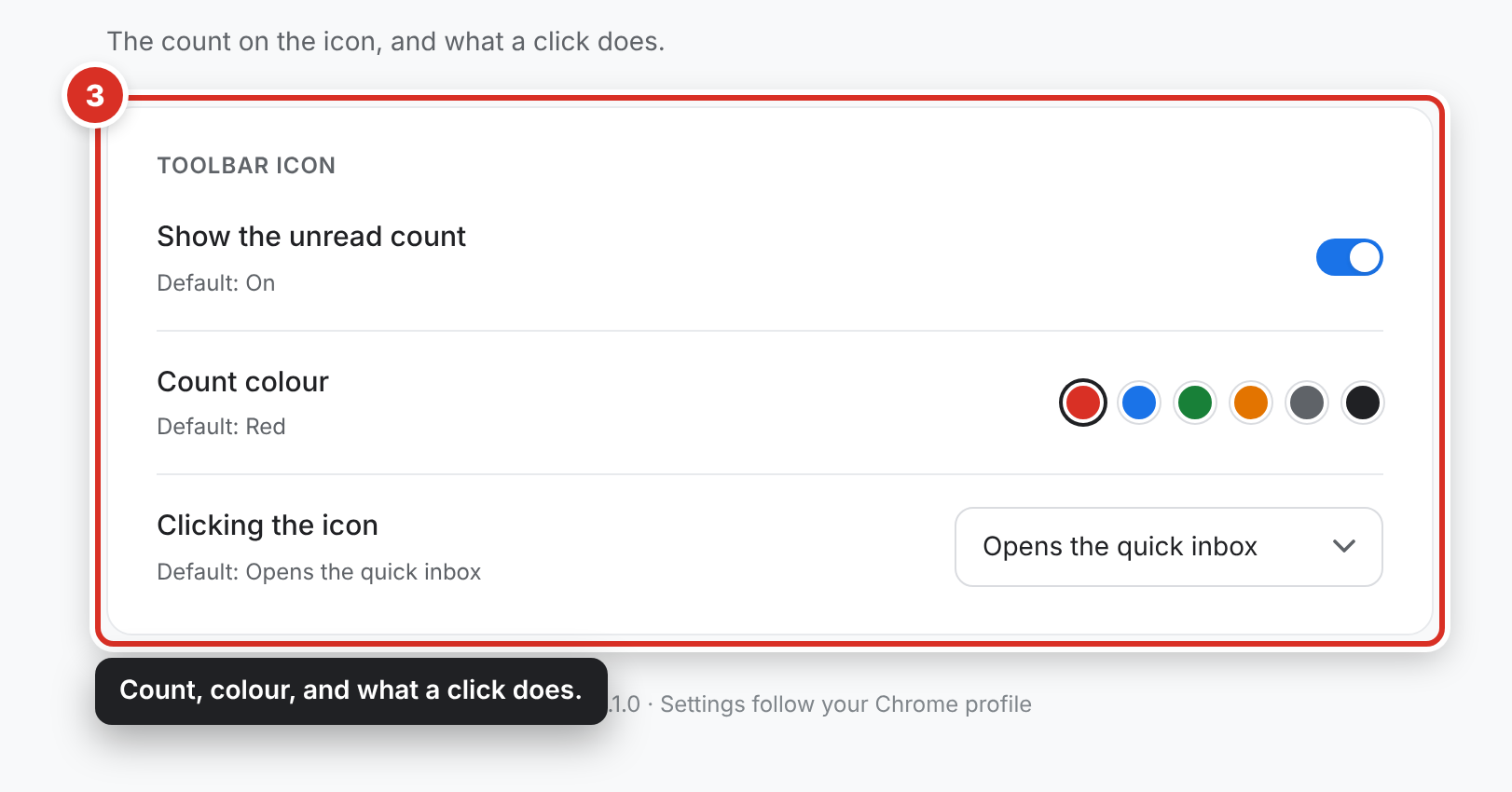
On the Toolbar icon tab ③ you can hide the unread count, pick its colour, and choose what clicking the icon does: open the quick inbox, open Gmail, or write a new email.
Alerts
Preview style, sound and when alerts close are explained in Desktop alerts. The Alerts tab also has Sound for each account, Sound for a person (an address, or a whole @company) and VIP senders — only VIPs pop up, and you can let them through quiet hours.
Popup theme
On the Inbox tab, Popup theme changes how the quick inbox looks: Navy (the default), Light, Dark or Plum (deep and calm).
Plans
The free plan checks every account and alerts you for your main account. Upgrade — the gold button in the quick inbox — shows two plans: CheckMyEmail Pro, for everything above, and the Pro Bundle, which also unlocks TrackMy.Email Pro. Both are billed yearly; manage them on the Subscription tab.
Signing in and the Pro badge
To sign in, go to Settings → Subscription. If TrackMy.Email is signed in on this computer, click Continue as that account (one click), or Use another account for Google’s own account window. Otherwise Sign in opens Google’s account window — pick the account you bought with. Once you’re on a paid plan, a gold Pro (or Pro Bundle) badge replaces Upgrade at the top of the quick inbox; click it for Settings → Subscription. If a Pro option ever says Free plan limit reached while you already pay, click Already have Pro? Sign in in that window.
Your settings follow you
Settings are saved in your Chrome profile, so they follow you to other computers if you use Chrome sync. Reset to defaults, on the Help tab, puts everything back the way it was when you installed it.
Still stuck? Email [email protected].