


Help centreCheckMyEmail
Quiet hours
Pause CheckMyEmail's pop-ups and sounds on a schedule. A paid feature that TrackMy.Email follows too, so both stay quiet together.
Quick answer: Quiet hours stop pop-ups and sounds on a schedule (paid plans). Turn them on in CheckMyEmail icon → ⚙ Settings → Quiet hours → Quiet hours, then set From, to and the days. Off by default. The count keeps updating.
Quiet hours stop alerts and sounds at the times you choose, for example overnight. The unread count keeps updating, so nothing is missed.
Quiet hours come with CheckMyEmail Pro or the Pro Bundle. The Pro Bundle covers both CheckMyEmail and TrackMy.Email, and TrackMy.Email follows the same schedule for its open notifications. You can set it in either extension: here, or in TrackMy.Email’s Settings → Notifications → Quiet hours.
Set your schedule
- Open CheckMyEmail Settings.
- Make sure you’re signed in: if TrackMy.Email is installed and signed in, that happens by itself; otherwise Settings → Subscription → Sign in (Google’s own account window).
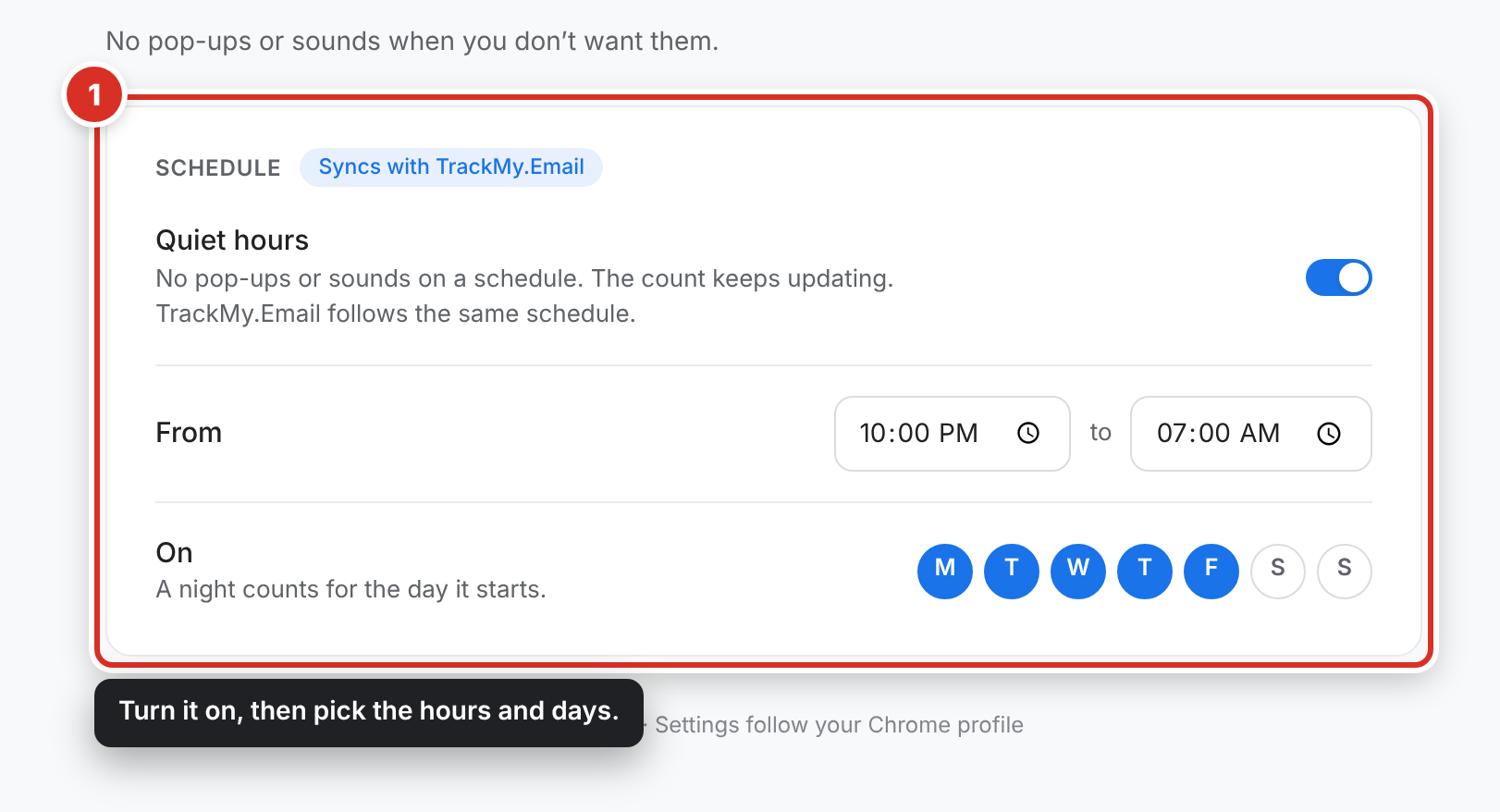
- On the Quiet hours tab ①, switch Quiet hours on.
- Choose From and to, and the days it applies. A night counts for the day it starts, so 10 PM to 7 AM on Friday covers Friday night.
If you’re on the Free plan, switching it on shows your plan options; nothing changes until you upgrade. See Plans and billing.
While quiet hours are on
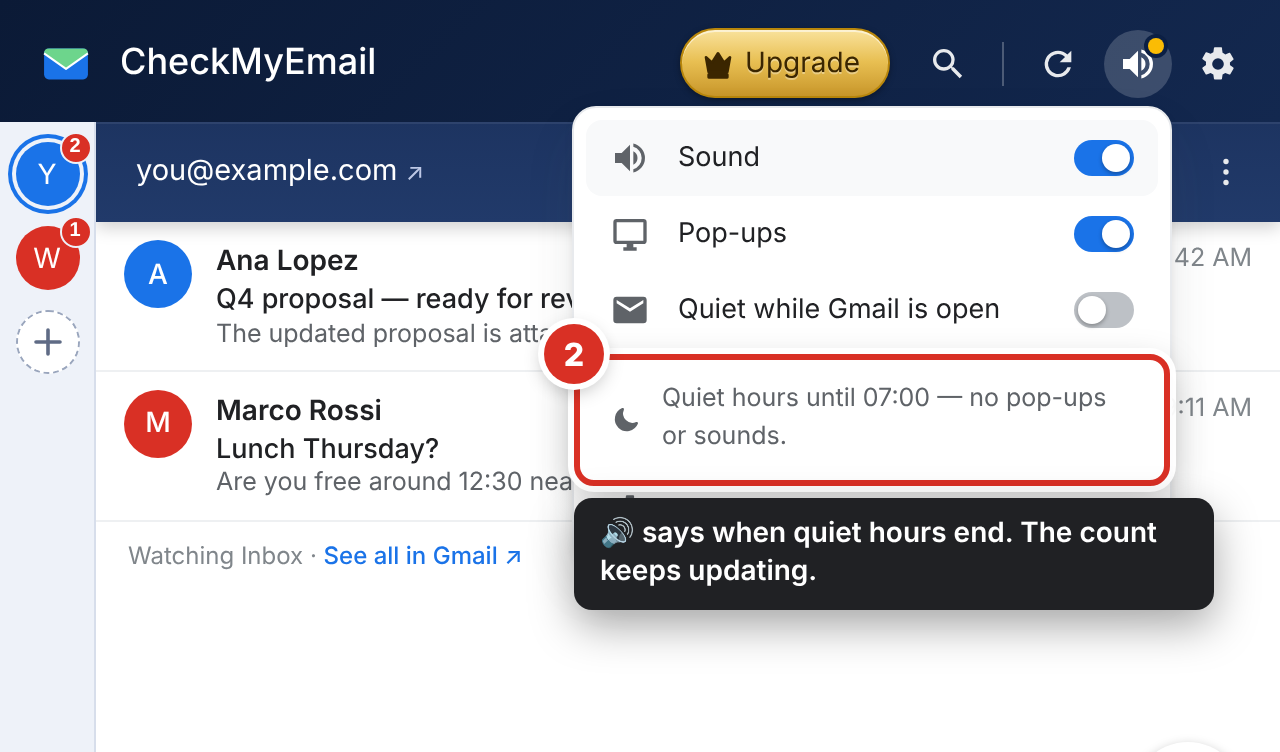
The icon turns grey but keeps its count. In the quick inbox, 🔊 gets a yellow dot; click it to see when quiet hours end ②.
To stop early, switch off Settings → Quiet hours → Quiet hours.
To stay quiet only while you read Gmail, without a schedule, use Settings → Alerts → Stay quiet → Quiet while Gmail is open (free, off by default). See Desktop alerts.
Still stuck? Email [email protected].