


Help centreCheckMyEmail
Alerts or count not showing
What to check when CheckMyEmail shows no count, a different count from Gmail, or no desktop alerts — most common causes first.
Quick answer: No alert or sound? Click the CheckMyEmail icon, then 🔊 at the top: check Sound and Pop-ups are on. A yellow dot on 🔊 means alerts are held back on purpose — its menu says why (“Quiet while Gmail is open”, “Quiet in full screen” or “Quiet hours”); change it there, in Settings → Alerts → Stay quiet or in Settings → Quiet hours. No count? Sign in to Gmail in this Chrome profile and click Allow in the quick inbox.
Work through the section that matches what you see, most common causes first.
The icon is grey with no count
CheckMyEmail uses the Gmail sign-in you already have in Chrome. A grey icon with “Sign in to Gmail” in the quick inbox means no Gmail account is signed in to this browser ①. Click Open Gmail, sign in, and the count appears within a minute.
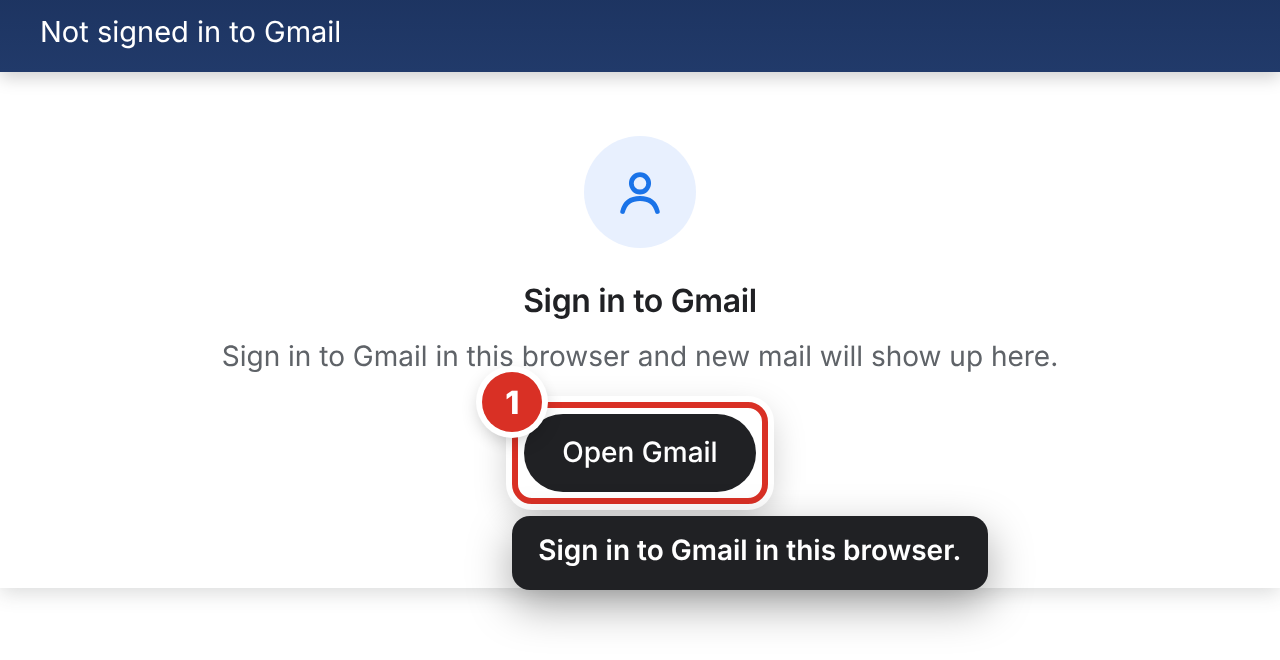
A grey icon with no number that says “click to get started” means you haven’t allowed CheckMyEmail to check your Gmail yet: click it and click Allow.
A grey icon that still shows a number means quiet hours are on — see Quiet hours.
The count doesn’t match Gmail
- What counts. CheckMyEmail counts every unread email in your inbox by default (All inbox). If you changed it, check Settings → Inbox → Count: Primary only and Custom count less than Gmail does.
- All your accounts are added up. Hover over the icon to see the count for each account.
- An account is hidden. Check Settings → Accounts: a hidden account says “Hidden from the count” — click Show again.
- It just changed. CheckMyEmail checks about every 30 seconds; click ↻ (Check now) in the quick inbox to update it straight away.
No desktop alert or sound
Check these in order:
- Click 🔊 at the top of the quick inbox. If it has a yellow dot, its menu says why alerts are quiet right now:
- “Quiet while Gmail is open” → switch off Quiet while Gmail is open right there in the 🔊 menu (same as Settings → Alerts → Stay quiet → Quiet while Gmail is open);
- “Quiet in full screen” → leave full screen, or switch off Settings → Alerts → Stay quiet → Quiet in full screen;
- “Quiet hours until…” → wait, or switch off Settings → Quiet hours → Quiet hours.
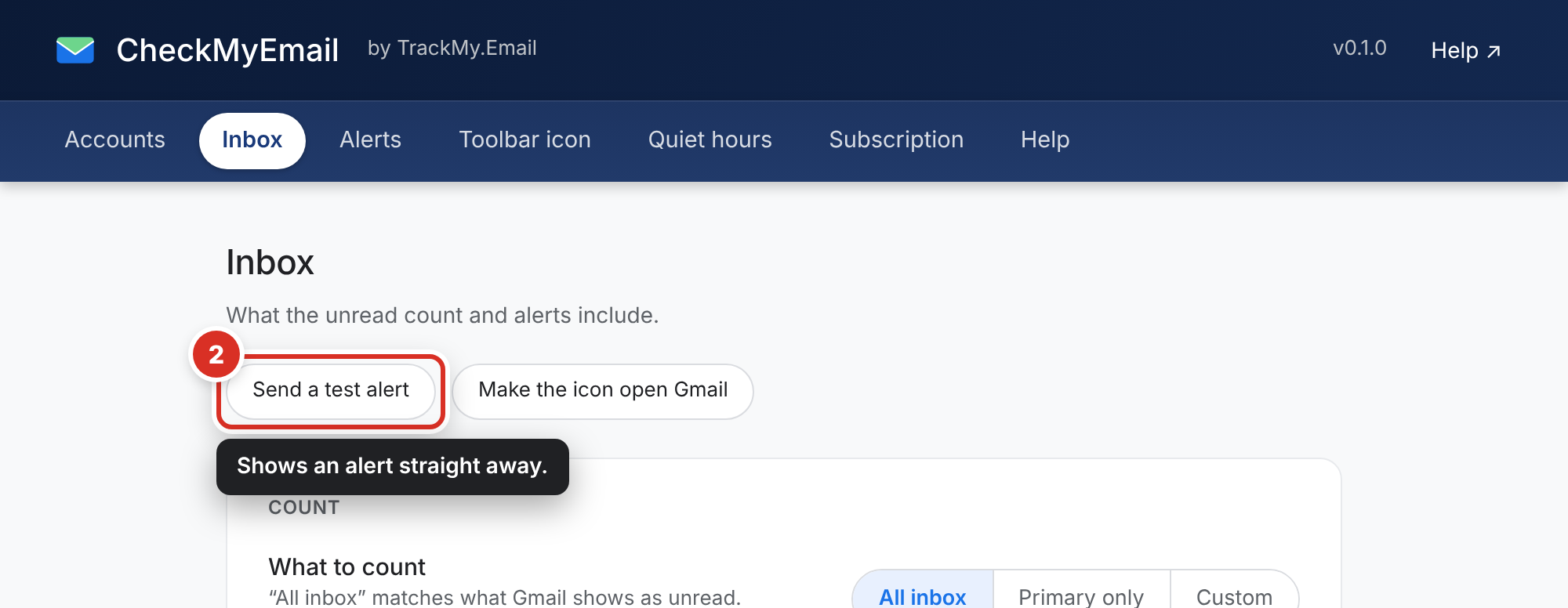
- Send yourself a test alert: Settings → Inbox → Send a test alert ②. If it appears with a sound, alerts work — go to step 5.
- Pop-ups or sound switched off: check Settings → Alerts → Desktop alerts isn’t Off and Settings → Alerts → Sound isn’t Off.
- Allow notifications from Chrome on your computer.
- Windows 11: Start › Settings › System › Notifications. Turn Notifications on, and turn on Google Chrome under “Notifications from apps and other senders”. Press Windows key + N and make sure Do not disturb (the bell with “zZ”) is off.
- Mac: Apple menu › System Settings › Notifications, select Google Chrome and turn on Allow notifications. In Control Center, make sure no Focus is on.
- The account’s alerts are off. In Settings → Accounts, each account has a Desktop alerts switch. On the Free plan only your Main account alerts; new mail in other accounts still counts, and the quick inbox shows a note “New mail in … — alerts are off”.
- Only new emails alert. Emails that were already unread when you installed CheckMyEmail, or that arrive in a view you don’t count, don’t pop up.
Nothing updates at all
CheckMyEmail works only while Chrome is open. If Chrome was closed or your computer was asleep, it checks again as soon as Chrome opens. If an account is missing, open Gmail in this Chrome profile and check you’re signed in to it, or click the dashed + in the quick inbox to sign in to it.
Still stuck
Copy the debug log — Settings → Help → Copy debug log — and email it to [email protected] with what you see and your Chrome version. The log has no email addresses, senders or subjects. Never send passwords or the content of your emails.
Still stuck? Email [email protected].