


Help centreGetting started
Install TrackMy.Email
Add TrackMy.Email to Chrome, pin it to the toolbar and sign in with Google so your emails from Gmail are tracked.
Quick answer: Add TrackMy.Email from the Chrome Web Store, pin it (puzzle-piece Extensions icon → pin TrackMy.Email), reload Gmail and click Sign in → Agree and sign in with the Google account you send email from. Every new email is then tracked automatically.
TrackMy.Email is a Chrome extension that works inside Gmail. Installing takes about a minute.
What you need
- Google Chrome on your computer.
- A Gmail or Google Workspace account that you use at mail.google.com.
Add it to Chrome
- Open TrackMy.Email in the Chrome Web Store and click Add to Chrome.
- Chrome shows what the extension can do. It runs on Gmail pages and shows notifications — it asks Google for no access to your mailbox. Click Add extension.
- Click the puzzle-piece Extensions icon in the Chrome toolbar, then the pin next to TrackMy.Email, so its icon is always one click away.
Sign in
- Open or reload Gmail.
- Gmail shows Finish setting up TrackMy.Email. Click Sign in ①.
- A page explains what TrackMy.Email stores for each tracked email. Read it and click Agree and sign in — nothing is tracked before you agree.
- Choose your Google account. We only receive your name and email address.
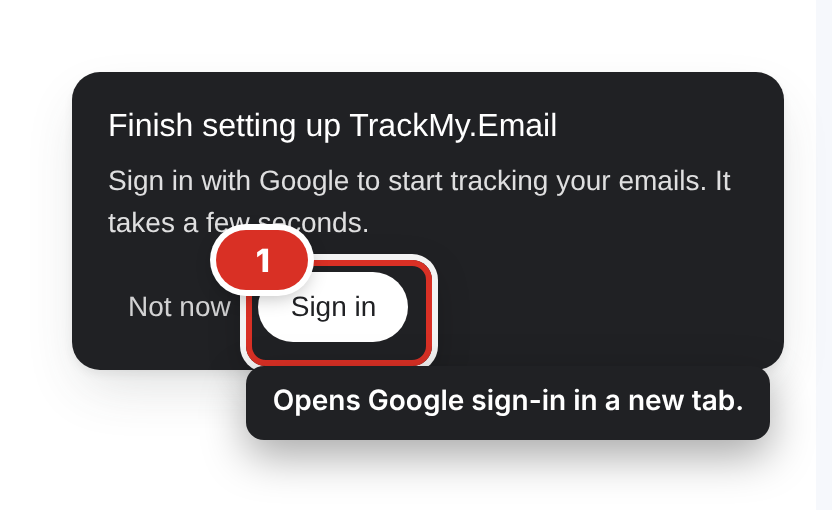
Use the same Google account you send email from. You can also sign in from the TrackMy.Email icon in the toolbar: click it, then Sign in with Google.
A quick tour
After you sign in, a one-minute tour inside Gmail shows the compose window, the checks in Sent and the sidebar. You can replay it any time from Settings → Help → Take the tour — see Change your settings.
Still stuck? Email [email protected].