


Help centreUsing it
See who opened your email
Where opens and link clicks show up in Gmail — in Sent, in the conversation and in the sidebar — and how to read them.
Quick answer: A grey check next to a sent email means not opened yet; green means opened. See them in Gmail’s Sent folder, under your message in the conversation (Opened 3 times → Full history), in the TrackMy.Email sidebar on the right of Gmail, and in the toolbar popup.
Every tracked email shows whether it was opened — in your Sent folder, inside the conversation, in the TrackMy.Email sidebar and in the toolbar popup.
In Sent
A grey check next to an email means it was sent and hasn’t been opened yet. It turns green the moment it’s opened. Hover the check to see how many times and when.
In the conversation
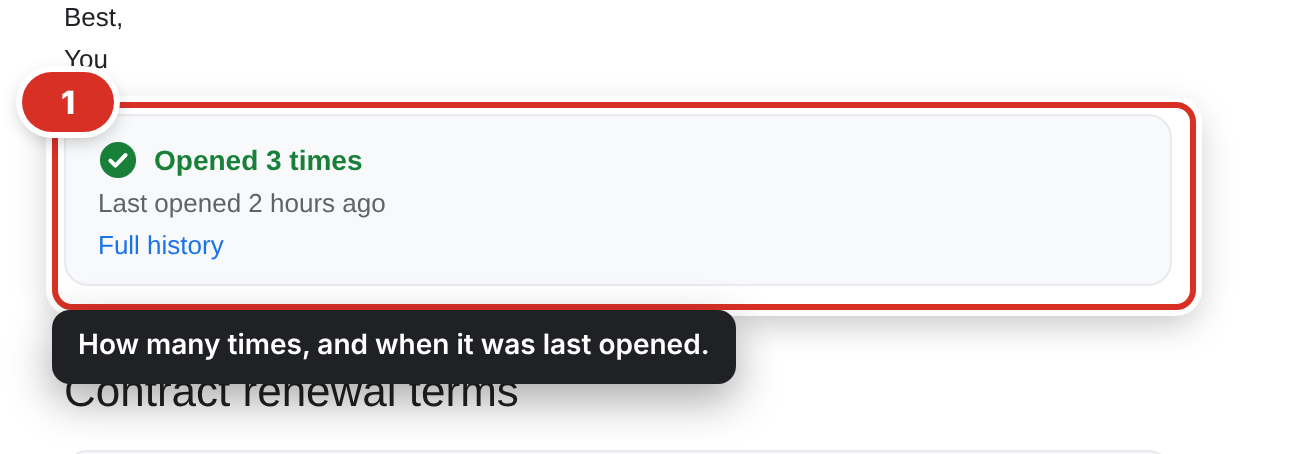
Open a tracked email. Under your message you see how many times it was opened and when it was last opened ①.
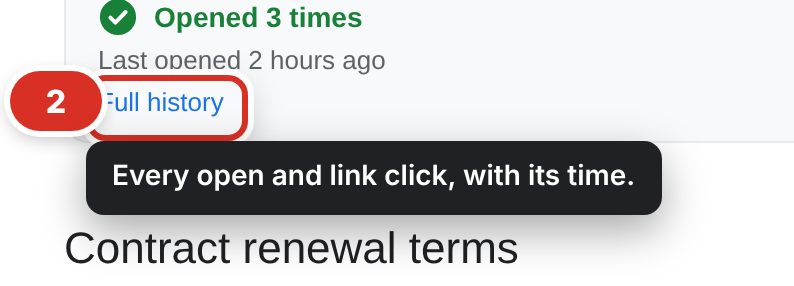
Click Full history ② to see every open, newest first. Opens loaded through Gmail are marked via Gmail. On Pro, link clicks appear here too, with the link that was clicked.
In the sidebar
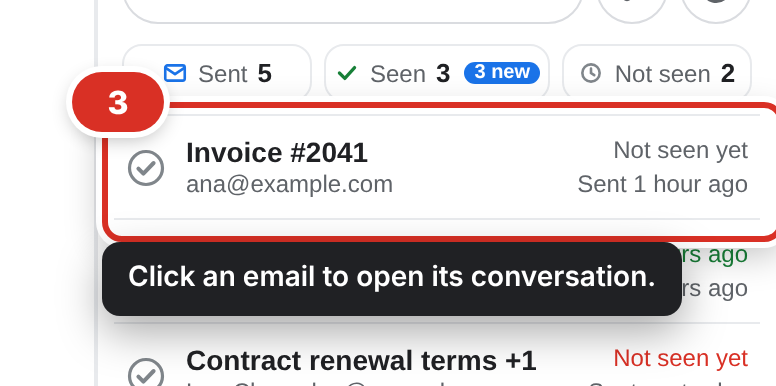
Open TrackMy.Email from the icons on the right edge of Gmail to see all your tracked emails in one place: how many you tracked, how many were opened, and which ones haven’t been opened yet. Click an email ③ to open its conversation.
An open is recorded when your recipient’s email app loads images. If they never load images, the email stays grey even if they read it.
History on the Free plan
The Free plan shows the last 7 days of history. Older emails are kept — Pro shows your full history.
Still stuck? Email [email protected].